Screenshot X - Screen Capture
- 4.3
- Rating
- 5.00M
- Installs
- Free
- Price

 Analysis by App-foxy
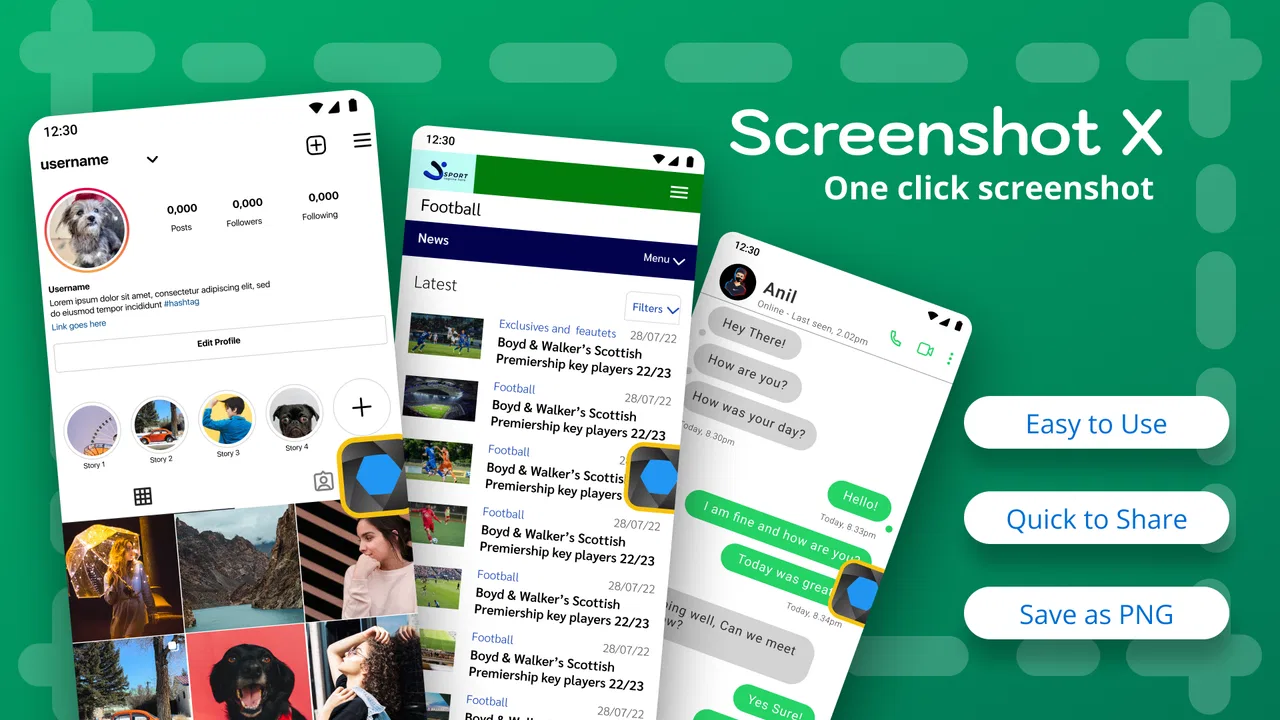
I usually judge a screenshot tool by one simple question: does it get out of the way when I need it? Screenshot X - Screen Capture, developed by TarrySoft, is built around that idea. It is a free photography app for Android that lets me capture the screen with one touch and then share the image. That sounds modest, but it addresses a very common annoyance: remembering the correct button combination, opening an editing app, finding the image, and only then sending it.
After using it, I see the appeal clearly. This is not an all-purpose photo editor or a social platform. It is a focused shortcut for people who take screenshots often and want a simpler route from what is visible on the display to a shareable image. The app has been available since February 12, 2015, and its current version is 2.103.0. Its long presence on Android helps explain why it has become familiar to a large audience, but longevity alone is not a reason to install it. The real question is whether its one-touch approach suits the way you already use your phone.
How I would decide whether Screenshot X is right for me
I’d decide by tracking which part of screenshot use actually slows me down: taking the image, preparing it, or finding it later. Screenshot X is most compelling when capture itself is the bottleneck, while an editor or better gallery routine makes more sense for the other two. I’d also test it during the kinds of moments when I usually need a screenshot, rather than changing my habits based on a single trial.
You May Also Like

 Blood Strike: 2.5 Anniversary
Blood Strike’s Loadouts Turn Every Drop Into a Tactical Gamble
A close look at Blood Strike’s custom loadouts: how fast access to signature weapons reshapes its battle royale rhythm, rewards preparation, and narrows the gap between fights.

 Pandora - Music & Podcasts
Pandora’s Music Is Easy to Start, but Harder to Recover
Pandora’s strength is its low-effort path from a seed to a station. Its weak spot is how much confidence it asks you to place in connection, setup, and quiet recovery.

 8 Ball Pool
 Is Built on Rivalries, Rematches, and Routine
A close look at the rivalries, rematches, shared routines, and unanswered safety questions that turn a quick pool match into a persistent mobile community.

 Samsung Music
’s Quiet Strength Is Playing What You Already Own
Its reach comes less from spectacle than from dependable access to a personal library. That simplicity is both the app’s strongest retention engine and its ceiling.

 AccuWeather: Weather Radar
AccuWeather Review: A Quick, Clear Forecast for Everyday Decisions
For everyday plans, the best forecast is the one you can understand quickly. AccuWeather makes rain timing, radar, and local conditions easy to act on, with a few trade-offs.

 Hill Climb Racing
Why Hill Climb Racing Still Turns Crashes Into One More Run
A tiny car, a bumpy hill and one more upgrade: Hill Climb Racing keeps resurfacing because its simple chaos makes every near-miss feel personal.
More From Our News Desk



The first decision is convenience, not image quality
For ordinary screenshots, the phone’s built-in shortcut is often perfectly adequate. Most modern Android devices already let me press a hardware-button combination, use a quick-settings tile, or select a screenshot command from the power menu. If that method feels natural on your device, installing another app may not change much.
Screenshot X becomes more interesting when the standard method is awkward. A physical button may be unreliable, difficult to press at the same time, or inconvenient when I am holding the phone in one hand. Some people also take screenshots while moving through another app and prefer an on-screen control rather than a button gesture. In that situation, a dedicated capture shortcut can feel more direct than the system option.
I would also consider how frequently I share screenshots. Someone who sends a payment confirmation, a delivery update, a map route, or a message thread several times a day benefits more than someone who captures a screen once every few weeks. The value is not in adding creative effects; it is in reducing the small amount of friction repeated many times.
What I look for before making it part of my routine
My practical checklist is short. I want the capture action to be easy to reach, the result to be obvious, and sharing to fit naturally into the next step. I also want to know whether the app complements Android rather than forcing me to abandon the system shortcut entirely. Screenshot X makes the most sense as an alternative route, not necessarily as the only way I ever capture an image.
One useful habit is to test it with the kinds of screens I actually save. I would try a conversation, a web page, a shopping receipt, a game screen, and a navigation view. These examples reveal whether the shortcut is comfortable in different contexts. They also show whether I am trying to solve a capture problem or a later organization problem. Screenshot X can help me create the image quickly, but it does not turn a cluttered gallery into a filing system.
That distinction matters. If my real frustration is finding old screenshots, I may need better gallery albums or a file-management routine instead. If my frustration is getting the screenshot in the first place, this app is aimed much more directly at the problem.
Who will notice the benefit most?
I think the strongest audience is made up of frequent sharers, people who dislike hardware-button gestures, and users who want a dedicated photography utility rather than a large editing suite. It can also suit anyone setting up an older Android phone where the built-in capture workflow feels less convenient. The minimum operating-system requirement is Android 8.0, so compatibility is broad without being unlimited.
The Everyone content rating makes it approachable for general use. I would still be careful about what I capture and share, especially when a screen contains private conversations, account details, addresses, or one-time codes. A faster screenshot workflow can encourage impulsive sharing, so I make a quick visual check before sending anything.
Where the one-touch workflow wins
The one-touch approach is most useful when the screen may change before I can go through a longer sequence, such as a temporary confirmation or a detail I need to pass along quickly. I’d treat the shortcut as the start of a small workflow: capture, inspect the image for private information, then share or discard it. That keeps speed useful without turning convenience into careless sharing.
It shortens the gap between seeing and saving
The clearest strength is the short path from screen to image. When I spot something worth keeping, I do not have to think about the correct button combination first. That is especially useful for temporary information: a confirmation screen that may disappear, a product detail I want to compare later, or a message I need to forward to somebody else.
A realistic example is arranging a repair appointment. I might receive a time window in a chat, open a map to check the address, and then capture the final details before switching back to the conversation. A dedicated capture action lets me preserve that information while it is visible. The benefit is small in one moment, but repeated small delays are exactly what make phone workflows feel tiresome.
Another advantage is consistency. Hardware shortcuts vary between phone brands and can change after a system update or a move to a different device. An app-based method gives me a familiar approach that is less tied to a particular button layout. I would not call that a guarantee of identical behavior on every phone, but it is a useful reason to prefer a dedicated tool when I change devices often.
It keeps the purpose narrow
I like that the app’s identity is easy to understand. It belongs in the photography category, but it is not pretending to replace a camera, retouching editor, or collage maker. That narrow purpose makes it easier to decide when to open it: I use it when the screen itself is the subject.
That focus is also helpful for people who do not want to learn a complicated interface. A large editing application can offer far more control, yet every extra panel creates another decision. For a quick capture, those options can become distractions. Screenshot X is better suited to a “save this now” moment than a “create a polished graphic” project.
Sharing is part of the practical value
The app is designed around capturing and then sharing, which matches how many screenshots are used. I often do not want to keep an image permanently; I want to send it to a friend, a support agent, a colleague, or a family group. A streamlined handoff matters more in that situation than advanced image correction.
There is a useful workflow here for troubleshooting. If an app shows an error, I can capture the screen and send the image along with a short explanation. The screenshot preserves details that are easy to mistype, while the one-touch approach reduces the chance that I lose the screen while trying to document it. I would still remove sensitive information when possible, but the process is practical.
It has enough adoption to feel established
Screenshot X holds an average rating of 4.3 from around 80 thousand ratings, with roughly 2.6 thousand written reviews. It has passed 5 million installs, which tells me this is not an obscure experiment with no visible user base. Those figures do not prove that it will behave perfectly on my specific phone, but they do make it easier to treat the app as an established option rather than an untested novelty.
I also appreciate that the app is free to start. That makes trying the workflow relatively low risk. The important caveat is that in-app purchases range from $0.99 to $99.99 per item, so I would inspect the available purchase prompts before assuming every part of the experience is included without cost. The free entry point is attractive, but the presence of optional purchases means I should make a deliberate choice rather than tap through automatically.
Three habits that make it more useful
First, I would place the capture control where my thumb naturally rests instead of leaving it in an inconvenient corner. The exact best position depends on the phone and the way I hold it, but the principle is simple: a one-touch tool only saves time if the touch itself is easy.
Second, I would use it as a temporary bridge, not as my entire archive. After sharing an image, I decide whether it deserves permanent storage. Deleting disposable screenshots regularly keeps the gallery manageable and prevents an important receipt or instruction from disappearing in a pile of old captures.
Third, I would capture the whole context rather than only the key line when the image is meant for someone else. A recipient can understand a message more easily when the surrounding title, date, or app name remains visible. This is a small communication improvement that does not appear in a basic feature summary, but it makes screenshots more useful in real conversations.
Where the app may create friction
The same simplicity that makes Screenshot X appealing also limits it. A quick capture tool is not automatically a good annotation tool. If I need arrows, highlights, cropping, blur effects, or a carefully arranged tutorial image, I may still have to open another application afterward. For occasional edits, that extra step is acceptable. For a workflow built around annotated screenshots, a more complete utility may be a better starting point.
I also would not assume that every screen can be captured in the same way. Some apps protect sensitive content or restrict screenshots, and an external capture shortcut cannot necessarily override those rules. This is important for banking, streaming, private-content, and security-focused applications. If my main reason for installing the tool is to capture protected screens, I may be disappointed.
There is another trade-off: adding a dedicated control can make the interface feel busier. Users who prefer a completely clean display may find the extra access point distracting, even if it is useful. I would rather keep the system shortcut if I rarely take screenshots and do not want another control competing for attention.
When the usual alternatives are better
The built-in Android screenshot function remains the best alternative for many people. It is already present, does not require learning another workflow, and is closely integrated with the phone’s notification and gallery behavior. If I am comfortable with the hardware buttons or system menu, Screenshot X may not offer enough additional value to justify changing habits.
A full image editor is better when the screenshot is only the raw material. For example, if I regularly prepare instructions for coworkers, crop several screens into one guide, hide personal details, or add labels, I would choose a tool designed for editing. Screenshot X can begin that process, but it is not the complete production environment I would want for frequent documentation.
Screen-recording tools are also a better fit when movement matters. A screenshot freezes one moment; it cannot explain a sequence of taps, scrolling behavior, or a visual bug that appears only during interaction. In those cases, recording communicates more clearly than collecting several still images.
Cloud-based note or document apps may be preferable when the goal is long-term retrieval. A screenshot is convenient, but its text may not be searchable in the way a properly saved note is. I use the capture as evidence or a quick reference, not as a replacement for writing down important information that I will need months later.
The cost of switching is mostly a habit cost
Because the app is free to download, the main cost of trying it is not financial. It is the time spent deciding whether the new shortcut is more natural than the system one. I would test it for a day or two during normal use rather than judging it from a single capture. The right choice becomes obvious only when I use it under mild pressure, such as saving a disappearing confirmation or sending a screen while holding the phone one-handed.
I would also avoid changing every screenshot habit at once. I can keep the built-in method available and use Screenshot X only for quick sharing. That makes the transition reversible and lets me see whether the app solves a real problem. If I end up reaching for the system shortcut every time, there is little reason to keep an additional tool installed.
For anyone concerned about accidental sharing, I recommend adding a pause between capture and send. I look at the image, check the visible names and numbers, and then choose the destination. Faster capture should not mean careless communication. This is especially important when screenshots are taken from messaging, shopping, travel, or account-management apps.
What the purchase model means for different users
For a casual user, the free starting point is enough reason to experiment. I would not pay simply because the app is convenient; I would first identify whether the extra workflow saves me time every week. Someone who captures screens constantly may find optional purchases worthwhile, but the value depends on which paid elements are offered and whether they solve a specific annoyance.
The broad price range for individual in-app purchases is a reason to read each purchase screen carefully. I would check the wording, confirm whether an item is optional, and avoid assuming that a one-time small purchase represents the full cost of every available addition. That is sensible behavior in any free utility, particularly one that can become part of a daily routine.
My recommendation depends on the problem you are solving
I recommend Screenshot X to Android users who regularly need a quick, one-touch way to capture and share what is on screen, especially when hardware-button gestures are uncomfortable or inconsistent. Its focused design, free entry point, Everyone rating, and established presence make it easy to try without committing to a complicated editing system.
I would skip it if the built-in screenshot shortcut already feels effortless, if I mainly need markup and privacy editing, or if my real goal is recording actions rather than saving still images. In those cases, the system tool, an editor, or a recorder is a more direct match. Installing Screenshot X will not fix every screenshot-related problem, and expecting it to replace those categories would lead to frustration.
For me, its strongest use is as a small daily shortcut: capture a useful screen, check it for private details, share it, and move on. That workflow is simple, but it is also specific enough to be valuable. With an average rating of 4.3 and over 5 million installs, the app has clearly found an audience, yet the decision should still come down to personal habits rather than popularity.
My final view: Screenshot X - Screen Capture is worth trying when the act of taking a screenshot is the part that slows you down. It wins through focus and convenience, not through advanced editing or elaborate organization. I would keep it on a phone where I share screen images often, while choosing the built-in Android option or a more specialized alternative when capture is only one small part of a larger workflow.
FAQs for Screenshot X - Screen Capture
01What is Screenshot X - Screen Capture, and how does it work?
Screenshot X - Screen Capture is an intuitive app designed for both Android and iOS that allows users to easily capture, edit, and organize screenshots. The app provides a simple interface where you can take screenshots with a single tap, annotate them with various tools, and save them in organized folders for easy access.
02Does Screenshot X - Screen Capture offer any editing features?
Yes, Screenshot X - Screen Capture comes with a range of editing features. Users can annotate screenshots with text, arrows, and shapes. The app also allows for cropping and resizing images, making it easy to highlight important parts of the screenshot or add notes for clarity.
03Is Screenshot X - Screen Capture free to use, or does it come with in-app purchases?
Screenshot X - Screen Capture is free to download and use. However, it offers in-app purchases for additional features like premium editing tools, ad-free experience, and cloud storage options. This allows users to enhance their screenshot capabilities according to their needs.
04Can Screenshot X - Screen Capture organize my screenshots automatically?
Yes, Screenshot X - Screen Capture has an automatic organization feature. It can categorize screenshots based on the app they were taken from, date, or custom tags set by the user. This makes it convenient to find and manage screenshots without manual sorting.
05Is Screenshot X - Screen Capture compatible with all devices?
Screenshot X - Screen Capture is designed to work on most Android and iOS devices. It supports a wide range of operating systems, ensuring compatibility with both older and newer models. However, users should check the app's requirements on the download page to confirm compatibility with their specific device.
Pros
- Intuitive interface for easy use.
- High-quality image resolution.
- Multiple capture modes available.
- Customizable settings for personalization.
- Quick sharing options to social media.
Cons
- Limited editing tools available.
- Occasional lag on older devices.
- Ads can be intrusive at times.
- Requires permissions access to storage.
- Premium features locked behind paywall.

Screenshot X - Screen Capture
Gallery